
How to Clear System Data on Mac and Reclaim Hidden Storage
Quick Answer
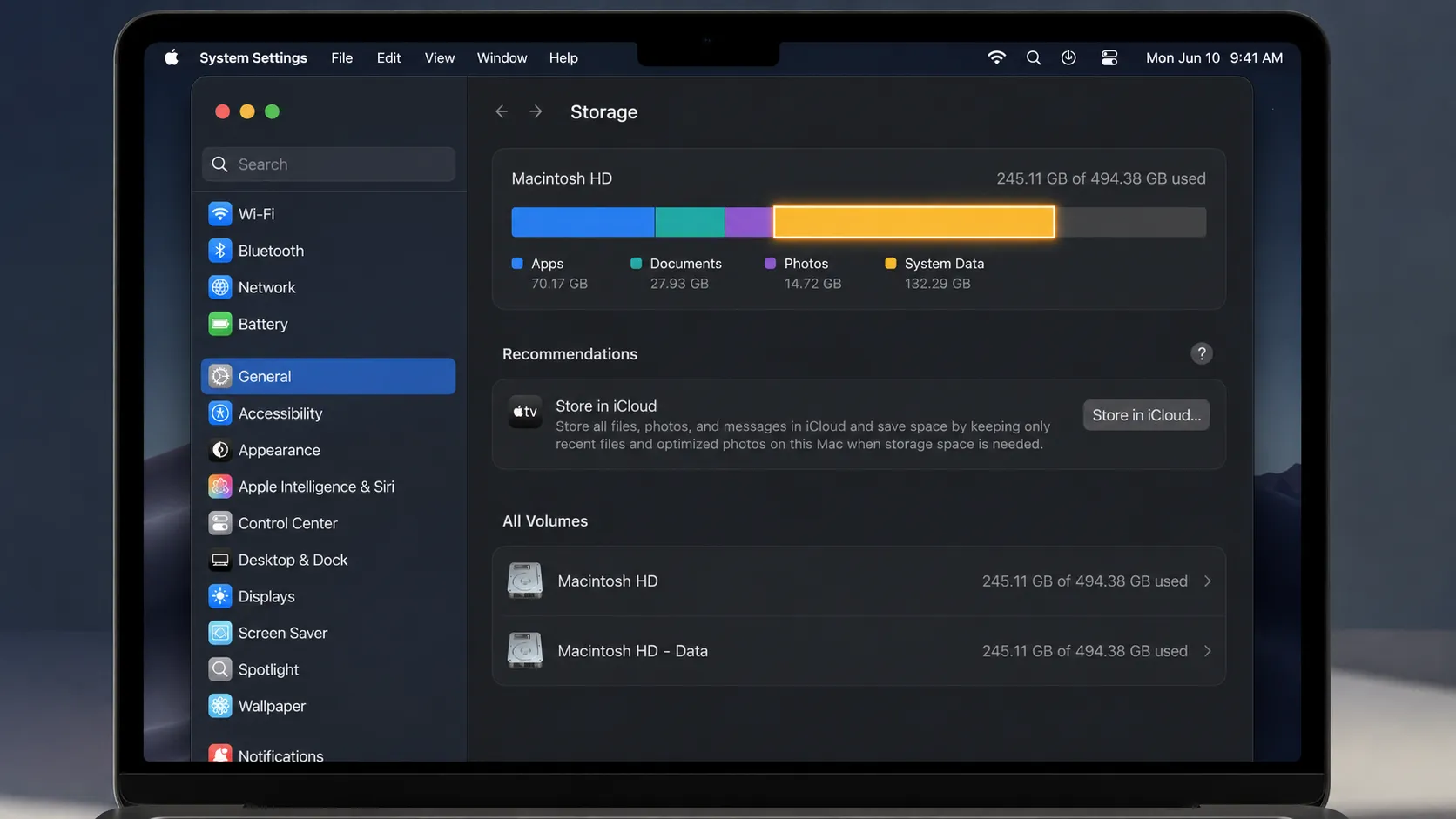
To clear system data on Mac, go to System Settings > General > Storage to see how much space it uses. Then manually delete caches from ~/Library/Caches and /Library/Caches, remove old Time Machine local snapshots via Terminal (tmutil deletelocalsnapshots), clear system logs from /var/log, and remove unused iOS backups from Finder. A healthy Mac should have 12-25GB of system data. If yours exceeds 50GB, caches, logs, and old snapshots have likely accumulated. For a one-click solution, DeepCleanMac scans 200+ hidden system locations and identifies exactly what's safe to remove.
System Data is the most confusing storage category on any Mac. Apple labels tens of gigabytes as 'System Data' without telling you what's inside - and the built-in storage manager gives you no way to clean it up. According to Apple Support, System Data includes 'caches, logs, and other resources currently in use by the system' - but that vague description doesn't help when 60GB of your drive is gone. On a healthy Mac, system data should sit between 12-25GB. But it commonly balloons to 50GB, 80GB, or even 100GB+ over time as caches, logs, Time Machine local snapshots, and leftover system files pile up silently. As Apple technician and macOS specialist Howard Oakley notes: 'System Data is where macOS hides everything it doesn't want you to manage - but that doesn't mean it's all essential.' The frustrating part? macOS won't let you browse this data through the normal Optimize Storage tool. You need to know exactly where to look. This guide walks you through five proven methods to clear system data on Mac - from safe Finder-based approaches to Terminal commands for power users. Before diving in, here's what you should know: clearing system data is safe when done correctly, and Apple confirms that caches are designed to be regenerated automatically. Every method is tested on macOS Sequoia and Tahoe, and we'll tell you exactly how much space each technique typically recovers.
5 Methods to Clear System Data on Mac
Method 1: Clear System and User Caches via Finder
Step 1: Open Finder and press Shift + Command + G to open the 'Go to Folder' dialog.
Step 2: Type ~/Library/Caches and press Enter. This opens your user-level app cache folder.
Step 3: Select all folders inside (Command + A) and move them to Trash. Do not delete the Caches folder itself - only its contents.
Step 4: Go back to 'Go to Folder' and type /Library/Caches to access system-level caches.
Step 5: Delete the contents of this folder too. You may need to enter your administrator password.
Step 6: Empty the Trash to reclaim the space (right-click Trash icon > Empty Trash).
User caches in ~/Library/Caches typically grow to 2-10GB. System caches in /Library/Caches add another 1-5GB. Apple's developer documentation describes the Caches directory as holding data that can be recreated, which is why clearing its contents is generally low-risk. Back up first, and expect apps to rebuild their caches on next launch. Your Mac and apps rebuild them automatically on next launch. This is the single fastest way to reduce system data without any risk.
Method 2: Remove Time Machine Local Snapshots
Step 1: Open Terminal from Applications > Utilities.
Step 2: List all local snapshots by running: tmutil listlocalsnapshots /
Step 3: You'll see snapshots listed by date, like 'com.apple.TimeMachine.2026-05-15-143022.local'. Each can use 1-10GB.
Step 4: Delete a specific snapshot: sudo tmutil deletelocalsnapshots 2026-05-15-143022
Step 5: To delete ALL local snapshots at once, run: sudo tmutil deletelocalsnapshots / - passing the volume rather than a date clears every local snapshot on it in one command.
Step 6: Verify they're removed by running the list command again.
According to Apple Support, 'local snapshots are created only on disks using APFS and are automatically deleted when your Mac needs the space.' In practice, however, this auto-deletion is unreliable - many users report 20-50GB of snapshots persisting even when disk space is critically low. Time Machine keeps these local snapshots on your internal drive even if you use an external backup disk, making them the single biggest contributor to bloated system data.
Method 3: Clear System Logs and Diagnostic Reports
Step 1: Open Finder and press Shift + Command + G.
Step 2: Navigate to ~/Library/Logs and delete the contents. These are user-level application logs.
Step 3: Navigate to /Library/Logs for system-wide logs and delete old files. Be cautious - keep recent logs if you're debugging an issue.
Step 4: Navigate to /var/log using Terminal (open Terminal, type: sudo ls /var/log) to view system logs.
Step 5: Clear old system logs by running: sudo rm -rf /var/log/*.gz /var/log/*.bz2 /var/log/*.old
Step 6: Delete diagnostic reports: rm -rf ~/Library/Logs/DiagnosticReports/*
System logs and diagnostic reports accumulate over months and years. Compressed log archives (.gz and .bz2 files) are always safe to delete. Recent logs (from the past few days) are useful for troubleshooting so you may want to keep them. Total recovery: typically 500MB-3GB, sometimes more on older Macs that have never been cleaned.
Method 4: Delete Old iOS/iPadOS Device Backups
Step 1: Open Finder and connect your iPhone/iPad (or check without connecting).
Step 2: Click your Mac's name in Finder sidebar, then go to General > Storage > Manage.
Step 3: In the sidebar, click 'iOS Files' or look for device backups.
Step 4: Alternatively, find backups directly at: ~/Library/Application Support/MobileSync/Backup/
Step 5: Delete any backup folders for devices you no longer own or backups that are outdated.
Step 6: If you use iCloud Backup for your iPhone, local Mac backups are redundant - delete them to save 5-30GB per device.
Each iOS device backup can consume 5-30GB - Apple states that backup size 'depends on how much data is on your device.' If you've owned multiple iPhones or iPads over the years, you may have forgotten backups sitting in this folder taking up 20-60GB total. These are counted as 'System Data' in your Mac's storage breakdown. If you've switched to iCloud backup for your devices, these local copies serve no purpose.
Method 5: Remove Unused Application Support Data
Step 1: Open Finder and press Shift + Command + G.
Step 2: Navigate to ~/Library/Application Support/.
Step 3: Look for folders belonging to apps you've already uninstalled. Common culprits: Slack (1-5GB), Docker (5-20GB), Spotify (1-10GB), Steam (variable).
Step 4: Check folder sizes by selecting a folder and pressing Command + I (Get Info).
Step 5: Delete folders for apps that are no longer installed on your Mac.
Step 6: Also check ~/Library/Containers/ - sandboxed app data often lives here and persists after uninstalling.
Application Support is where apps store persistent data - and this data does NOT get removed when you drag an app to the Trash. This is one of the biggest reasons system data grows over time. Docker Desktop alone can leave 10-20GB of image data here. Slack, Spotify, and Adobe apps are other common offenders. Always verify an app is uninstalled before deleting its Application Support folder.
What Counts as System Data on Mac
macOS groups many different file types under the 'System Data' label. Understanding what's inside helps you know what's safe to delete and what to leave alone:
| System Data Component | Details and Typical Size |
|---|---|
| System Caches | Temporary files created by macOS and apps to speed up operations. Stored in /Library/Caches and ~/Library/Caches. Typically 3-15GB. Completely safe to delete - macOS regenerates them automatically. |
| Time Machine Local Snapshots | Hourly backup snapshots stored on your internal drive. Can consume 10-50GB+ if Time Machine hasn't connected to its external drive recently. macOS should auto-purge these when space is low, but often doesn't. |
| System Logs & Diagnostics | Crash reports, diagnostic data, and system event logs stored in /var/log, ~/Library/Logs, and /Library/Logs. Typically 500MB-3GB. Old compressed logs are always safe to delete. |
| iOS Device Backups | Local iPhone/iPad backups stored in ~/Library/Application Support/MobileSync/Backup/. Each backup is 5-30GB. Redundant if you use iCloud Backup for your devices. |
| Application Support Leftovers | Data stored by apps in ~/Library/Application Support/ and ~/Library/Containers/. Persists even after uninstalling apps. Docker images, Slack media, Spotify cache, and old game data are common culprits. Can total 5-50GB. |
| macOS System Files | Core operating system files, APFS metadata, virtual memory (swap), and sleep images. Typically 8-12GB. These are essential and should NOT be deleted. This is the baseline 'system data' that every Mac needs. |
Why Is System Data So Large on Your Mac?
System data grows silently over time because macOS doesn't have a built-in cleanup tool for most of these files. The pattern is consistent: macOS has no general-purpose cleanup routine for this material, so it accumulates until you intervene. Caches accumulate at a rate of 1-3GB per month as you use apps and browse the web. According to Apple's storage management documentation, macOS is designed to purge caches 'when available disk space is low,' but in practice this mechanism often fails to reclaim enough space. Time Machine creates a new local snapshot every hour - and if your backup drive isn't connected regularly, these snapshots stack up to 20-50GB. Local snapshots are one of the most common explanations for storage that seems to disappear with nothing to show for it. Every app you install stores support data in hidden Library folders, and that data stays behind forever after you uninstall the app. Old iOS device backups from phones you no longer own sit untouched in MobileSync, often consuming 15-30GB each. System logs record every crash, error, and event - and on a Mac that's been running for years without cleanup, they can reach 2-5GB. The result? A Mac that shipped with 12GB of system data now shows 60-100GB, and the built-in storage manager offers no explanation or solution. Apple's Optimize Storage feature in System Settings can reduce some clutter (like emptying Trash automatically and removing watched Apple TV content), but as Apple Support confirms, it does not touch caches, logs, snapshots, or app leftovers - which are the real culprits behind inflated system data.
Tips for Keeping System Data Under Control
1. Clear caches monthly
Set a monthly reminder to clear ~/Library/Caches and /Library/Caches. Caches grow 1-3GB per month during normal use. A quick monthly cleanup prevents system data from ballooning. DeepCleanMac can automate this with a single click.
2. Keep Time Machine connected
Connect your Time Machine backup drive at least once a week. When macOS can offload local snapshots to the external drive, it automatically purges them from your internal storage. If you don't use Time Machine, consider disabling it entirely to prevent snapshot accumulation: sudo tmutil disable.
3. Uninstall apps properly
Apple Support notes that 'if an app doesn't have an uninstaller, some related files might be left behind after you move the app to the Trash.' In practice, dragging apps to Trash leaves behind Application Support data, caches, preferences, and login items in hidden Library folders. Use a dedicated uninstaller (or manually check ~/Library/Application Support, ~/Library/Preferences, and ~/Library/Containers) every time you remove an app.
4. Remove old iOS backups
If you've switched to iCloud Backup for your iPhone or iPad, delete the local backups on your Mac. Each one takes 5-30GB. Check ~/Library/Application Support/MobileSync/Backup/ and delete folders for devices you no longer use.
5. Monitor with System Settings
Check System Settings > General > Storage monthly to track your system data size. Healthy system data is 12-25GB. If it exceeds 30GB, it's time for a cleanup. If it's over 50GB, you likely have stale snapshots or large app leftovers hiding in Library folders.
6. Clean up after macOS updates
Major macOS updates leave behind old cache data, installer files, and previous system caches that the new version doesn't need. After updating to a new macOS version, run a full cleanup to remove 3-10GB of outdated system files that would otherwise count as system data indefinitely.
How DeepCleanMac Clears System Data Safely
DeepCleanMac is purpose-built for exactly this problem. It scans 200+ hidden system locations - including all the spots we covered in this guide and dozens more that are nearly impossible to find manually. In one scan, it identifies system caches, stale logs, Time Machine snapshot clutter, orphaned Application Support data, and leftover files from uninstalled apps. Everything is categorized with clear size information so you can see exactly what's consuming your system data. Here's how DeepCleanMac compares to doing it manually: Manual cleanup takes 30-45 minutes, requires Terminal knowledge, and risks deleting the wrong files if you're not careful. DeepCleanMac scans in under 30 seconds, knows which system files are safe to remove and which ones your Mac needs, and never touches core macOS files, active app data, or anything your system depends on. How much you recover depends on how long your Mac has been accumulating it, and you see every item with its size before anything is removed. The cleanup is a single click. Download DeepCleanMac free and see exactly how much hidden system data your Mac is holding onto.

Frequently Asked Questions
What is system data on Mac?
▾
According to Apple, System Data includes 'caches, logs, and other resources currently in use by the system.' In practice, it's a catch-all storage category that also includes Time Machine local snapshots, iOS device backups, Application Support files, and core macOS system files - essentially everything that isn't apps, documents, photos, or media. On a healthy Mac, it should be 12-25GB. When it grows beyond 50GB, it usually means caches, snapshots, or app leftovers have accumulated and need cleaning.
Is it safe to clear system data on Mac?
▾
Yes, most system data is safe to clear. Caches, logs, old Time Machine snapshots, and leftover app data can all be deleted without any risk to your Mac. The only files you should NOT delete are core macOS system files (the base 8-12GB that every Mac needs). The methods in this guide only target files that are safe to remove. If you want extra safety, use DeepCleanMac - it automatically identifies what's safe and what to leave alone.
How much system data is normal on a Mac?
▾
A healthy Mac should have 12-25GB of system data. This includes essential macOS files (8-12GB), recent caches (2-5GB), and active system logs (under 1GB). If your system data exceeds 30GB, caches have likely accumulated. Over 50GB usually means Time Machine snapshots or app leftovers are the culprits. Over 80GB indicates multiple issues stacking up - snapshots, iOS backups, and orphaned app data combined.
Why does system data keep growing on my Mac?
▾
System data grows continuously because macOS doesn't clean up after itself. Caches grow 1-3GB per month during normal use. Time Machine creates hourly local snapshots that can accumulate to 20-50GB. Every app you uninstall leaves behind support files in hidden Library folders. iOS device backups persist indefinitely. macOS has no built-in tool to clean most of these files - they just accumulate until your disk is full.
Can I delete system data without losing personal files?
▾
Absolutely. System data does not contain your personal documents, photos, music, or downloads. Those are stored in separate categories. Clearing caches, logs, snapshots, and app leftovers only removes temporary and leftover system files. Your personal data in Desktop, Documents, Downloads, Photos, and other user folders is completely untouched. The only exception: iOS device backups contain phone data, so make sure you have iCloud Backup enabled before deleting local copies.
Why can't I delete system data from System Settings?
▾
Apple's built-in storage manager (System Settings > General > Storage) shows you the system data category but provides no option to manage or reduce it. The Optimize Storage feature only handles Trash, Apple TV content, and email attachments. It does not touch caches, logs, Time Machine snapshots, or Application Support data - which make up the bulk of system data. This is why you need to use Finder, Terminal, or a dedicated tool like DeepCleanMac to actually clear system data.
Will clearing system data speed up my Mac?
▾
Yes, if your Mac's disk is nearly full. macOS uses free disk space for virtual memory, temporary files, and system operations, so a nearly full drive leaves it less room to work. Clearing system data on a disk that is close to full often produces a noticeable improvement. If your disk isn't full, clearing system data won't directly speed things up, but it prevents future slowdowns as files continue to accumulate.
System Data is the single biggest hidden storage consumer on most Macs. It quietly grows from a healthy 15GB to 50-100GB as caches, Time Machine snapshots, system logs, and app leftovers pile up in locations Apple doesn't expose through normal tools. The five methods in this guide give you complete control over every component of system data - from the quick cache cleanup that recovers 3-15GB to the Time Machine snapshot purge that can free 20-50GB in one command. For the fastest approach, DeepCleanMac scans 200+ hidden system locations and clears them safely in one click, showing you every item with its size first. Download it free and see exactly how much system data is hiding on your Mac.
Free download. Scans 200+ hidden locations in seconds.