
How to Clear Cache on Mac (5 Safe Methods)
Quick Answer
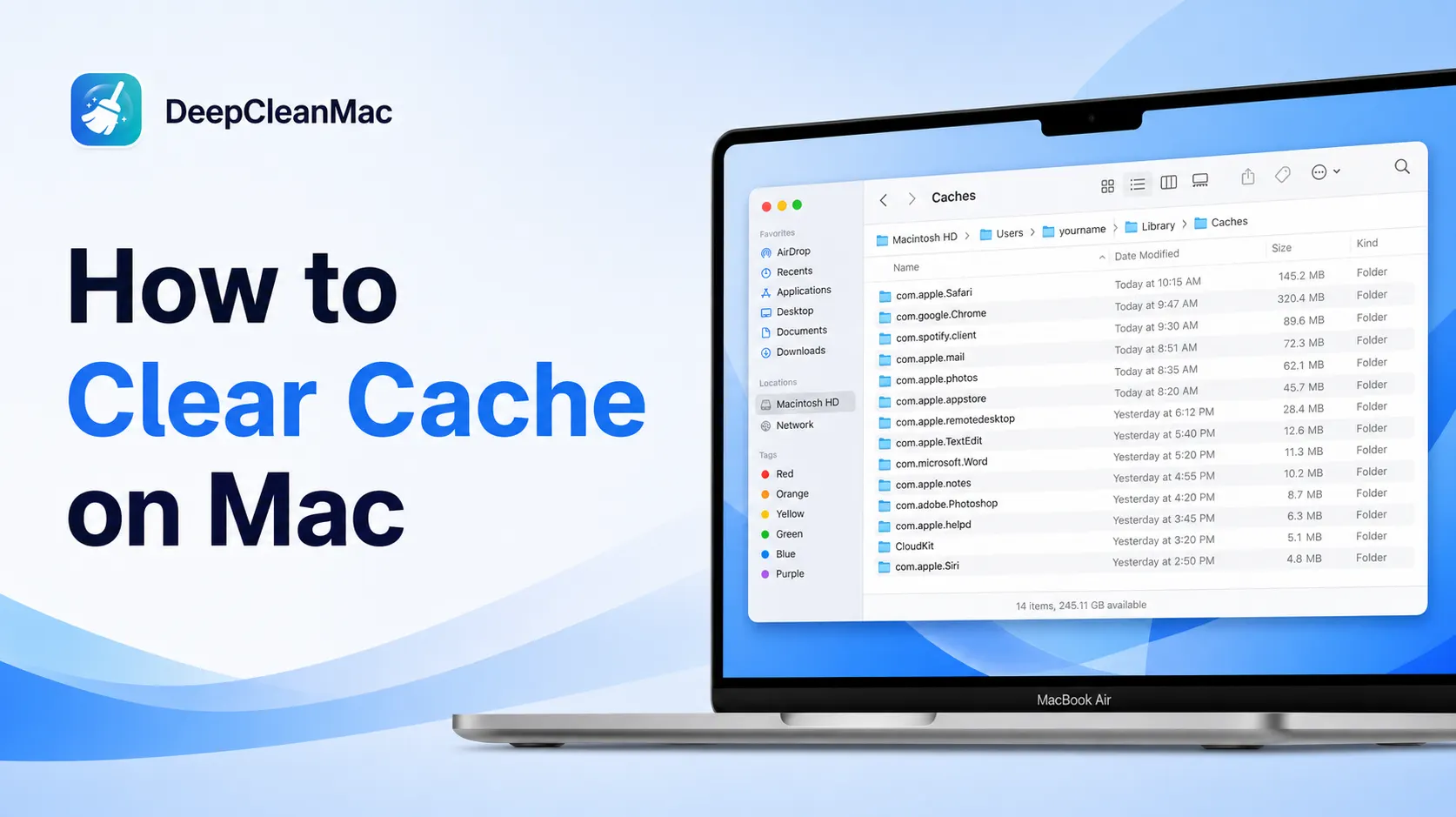
To clear cache on Mac, open Finder, press Shift + Command + G, type ~/Library/Caches, and delete the contents of the folder. This removes user-level app caches. For system caches, navigate to /Library/Caches instead. Browser caches can be cleared from each browser's settings. All caches are safe to delete - your Mac and apps regenerate them automatically. For a faster approach, DeepCleanMac scans 200+ hidden cache locations and clears them in one click.
Caches are temporary files that macOS and apps create to speed up performance. Over time, they accumulate and can consume 5-20GB of disk space - often without you realizing it. Apple describes the 'System Data' category in macOS storage settings as covering caches, logs, and other resources in use by the system, which is why cached data often makes up a large share of it. Browser caches, app caches, system caches, and font caches all pile up in hidden Library folders that most Mac users never see. The good news: clearing cache on Mac is completely safe. Your Mac and apps regenerate cache files automatically when they need them. In this guide, we cover five methods to clear every type of cache on your Mac, explain what each cache type does, and show you how to recover gigabytes of wasted space. Every method is updated and tested on macOS Sequoia (15), Sonoma (14), and Ventura (13).
5 Ways to Clear Cache on Mac
Method 1: Clear App and System Cache via Finder
Step 1: Open Finder.
Step 2: Click Go in the menu bar, then select Go to Folder (or press Shift + Command + G).
Step 3: Type ~/Library/Caches and press Enter. This opens your user-level app cache.
Step 4: Open individual folders and delete their contents, or select all and move to Trash.
Step 5: Go back to Go to Folder and type /Library/Caches to open the system-level cache. You may need your admin password.
Step 6: Delete the contents of folders for apps you recognize. Avoid system folders like com.apple.iconservices.
Step 7: Empty the Trash to permanently free the space.
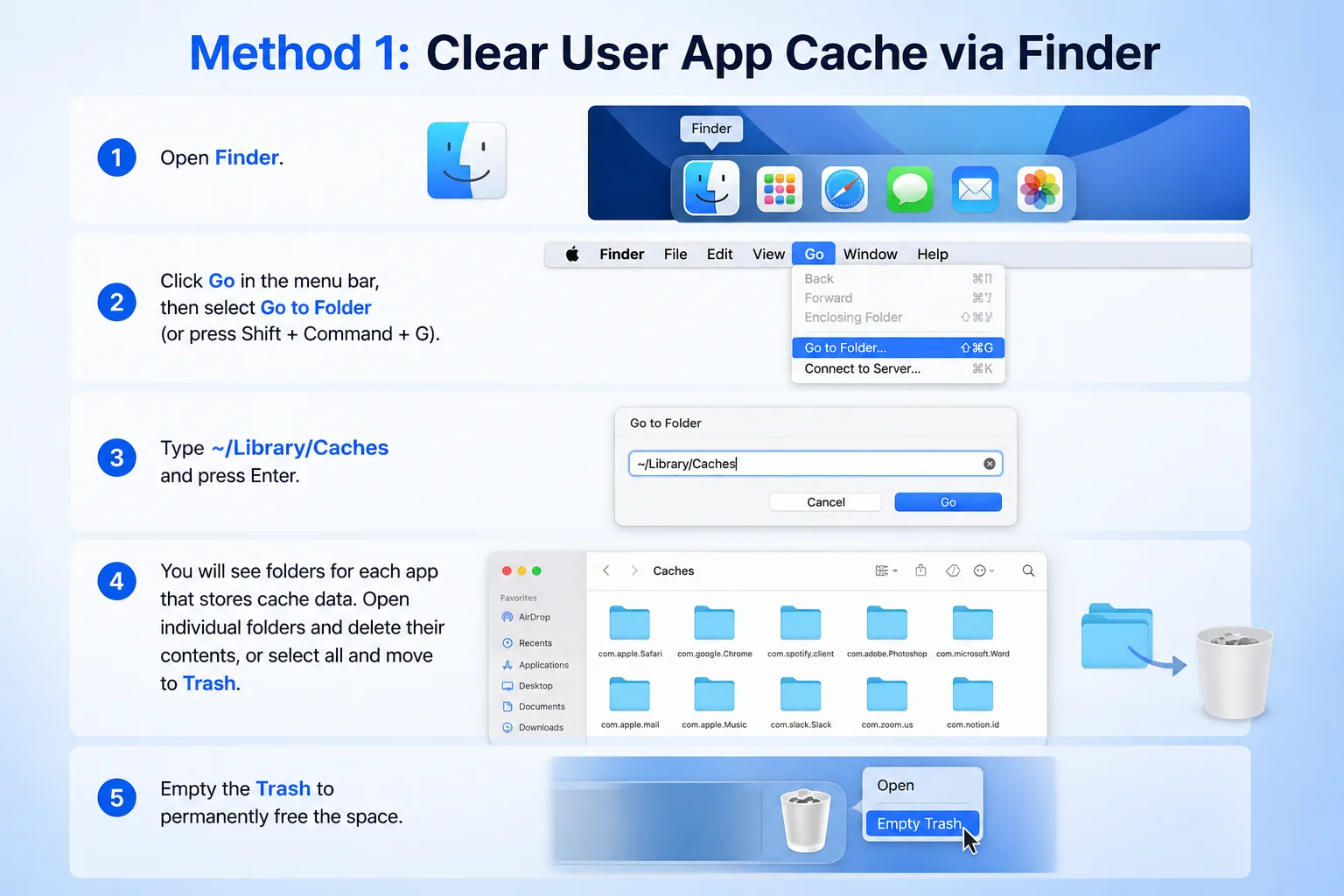
Delete the contents inside the folders, not the folders themselves. ~/Library/Caches holds user app caches (2-10GB). /Library/Caches holds system caches (1-5GB). Apple's developer documentation describes the Caches directory as holding data that can be regenerated, which is why clearing the contents is generally low-risk. Back up first, and expect a slower first launch while apps rebuild.
Method 2: Clear Cache Using Terminal
Step 1: Open Terminal from Applications > Utilities.
Step 2: To see how much cache you have, run: du -sh ~/Library/Caches
Step 3: To clear all user cache at once, run: rm -rf ~/Library/Caches/*
Step 4: To clear system cache, run: sudo rm -rf /Library/Caches/*
Step 5: Enter your administrator password when prompted.
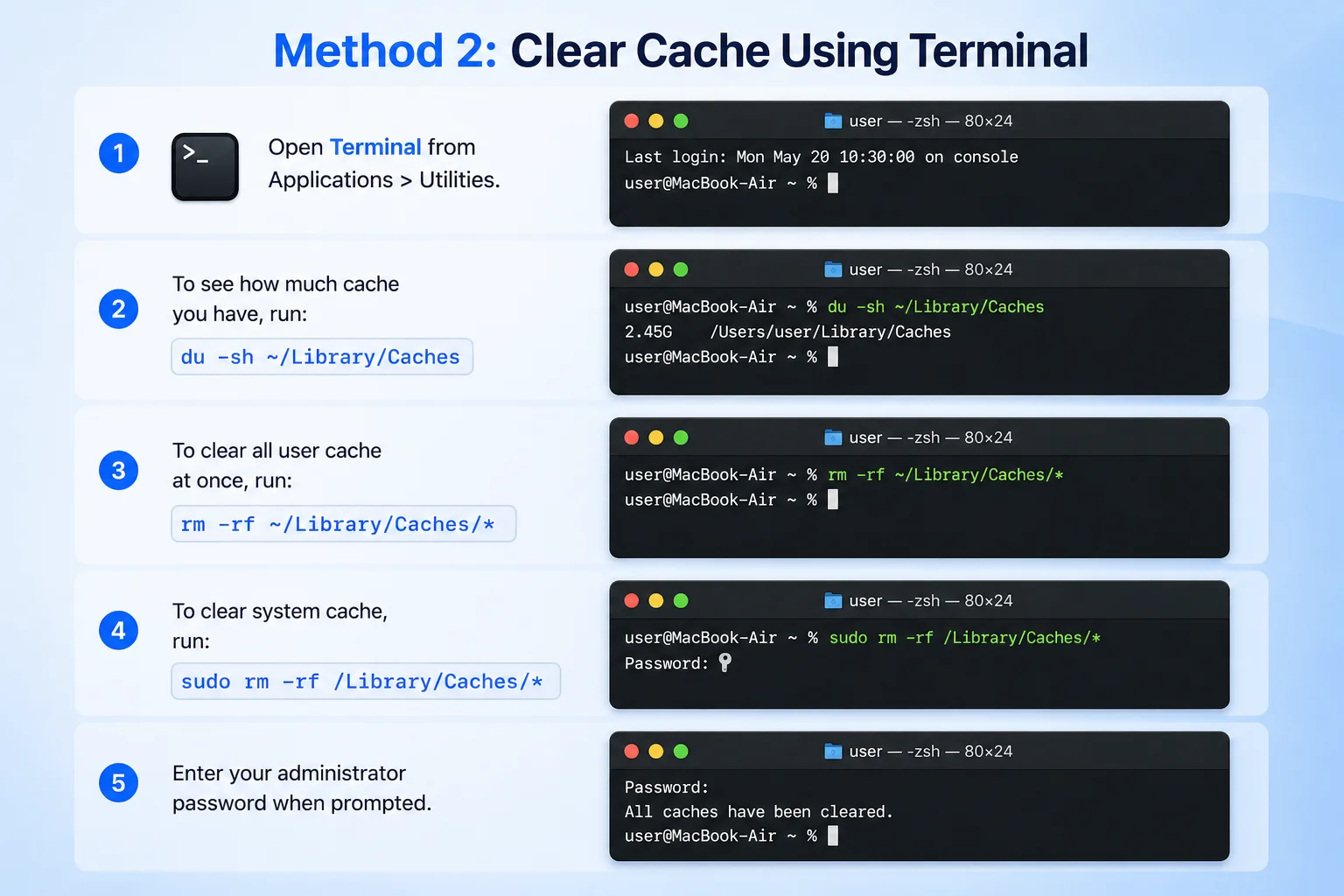
Terminal is faster than Finder for clearing cache because it removes everything in one command. The asterisk (*) deletes folder contents but keeps the folders themselves. Using a wildcard clears a folder's contents while leaving the folder itself in place, which is what you want here. This method is ideal for power users comfortable with the command line.
Method 3: Clear Browser Cache (Safari, Chrome, Firefox)
Safari: Open Safari > Settings > Privacy > Manage Website Data > Remove All. Or go to Safari > Settings > Advanced > check 'Show Develop menu', then click Develop > Empty Caches.
Chrome: Open Chrome > Settings > Privacy and Security > Delete browsing data > select Cached images and files > Delete data.
Firefox: Open Firefox > Settings > Privacy & Security > Cookies and Site Data > Clear Data > check Cached Web Content > Clear.
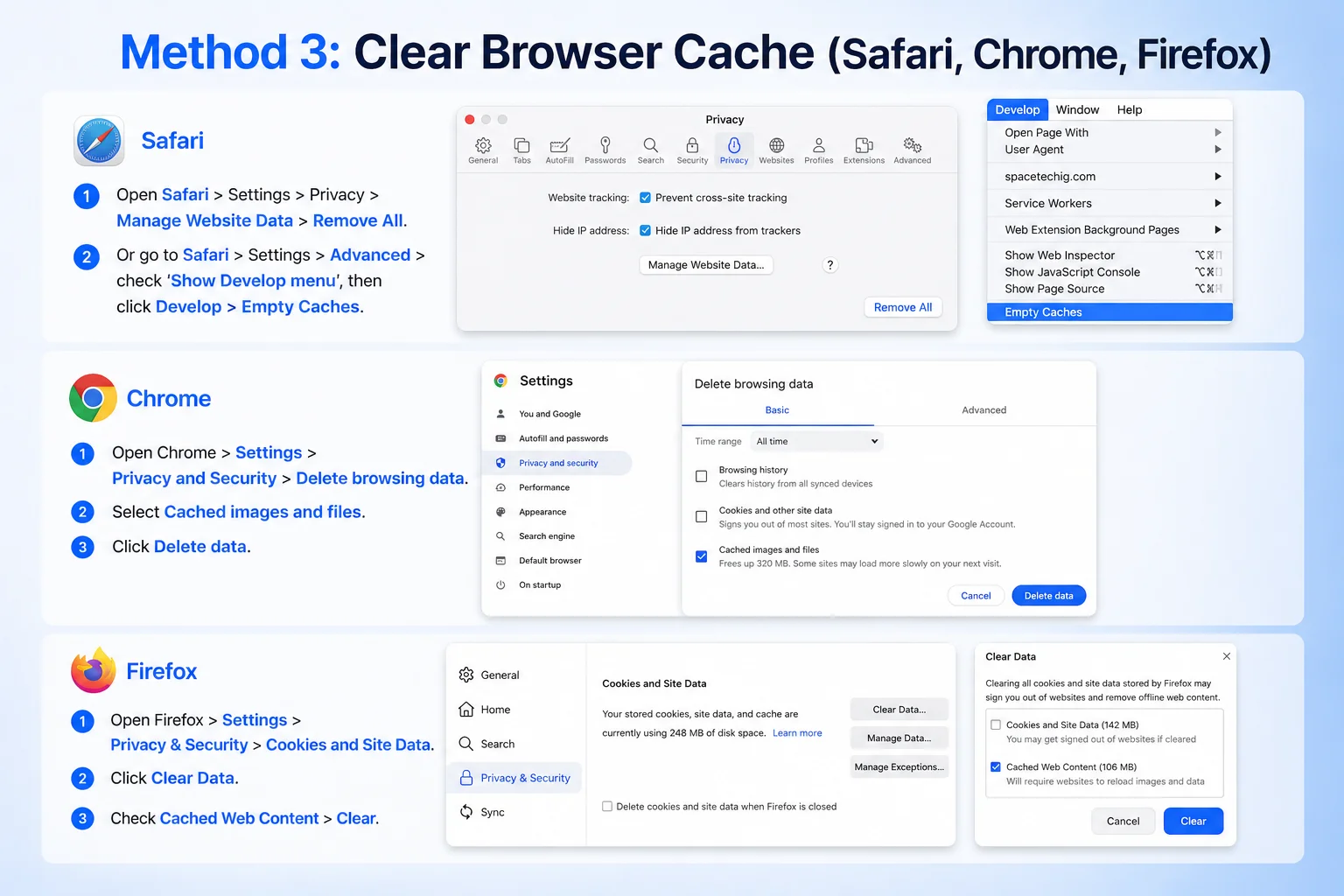
Clearing browser cache does not log you out of websites - only clearing cookies does that. Pages may load slightly slower on first visit as assets are re-downloaded. Bookmarks, saved passwords, and history are not affected. Chrome's cache grows steadily with normal browsing, and cached images and scripts make up the bulk of it.
Method 4: Clear DNS Cache via Terminal
Step 1: Open Terminal from Applications > Utilities.
Step 2: Type the following command and press Enter: sudo dscacheutil -flushcache; sudo killall -HUP mDNSResponder
Step 3: Enter your administrator password when prompted.
Step 4: You will not see any confirmation message - the cache is flushed silently.
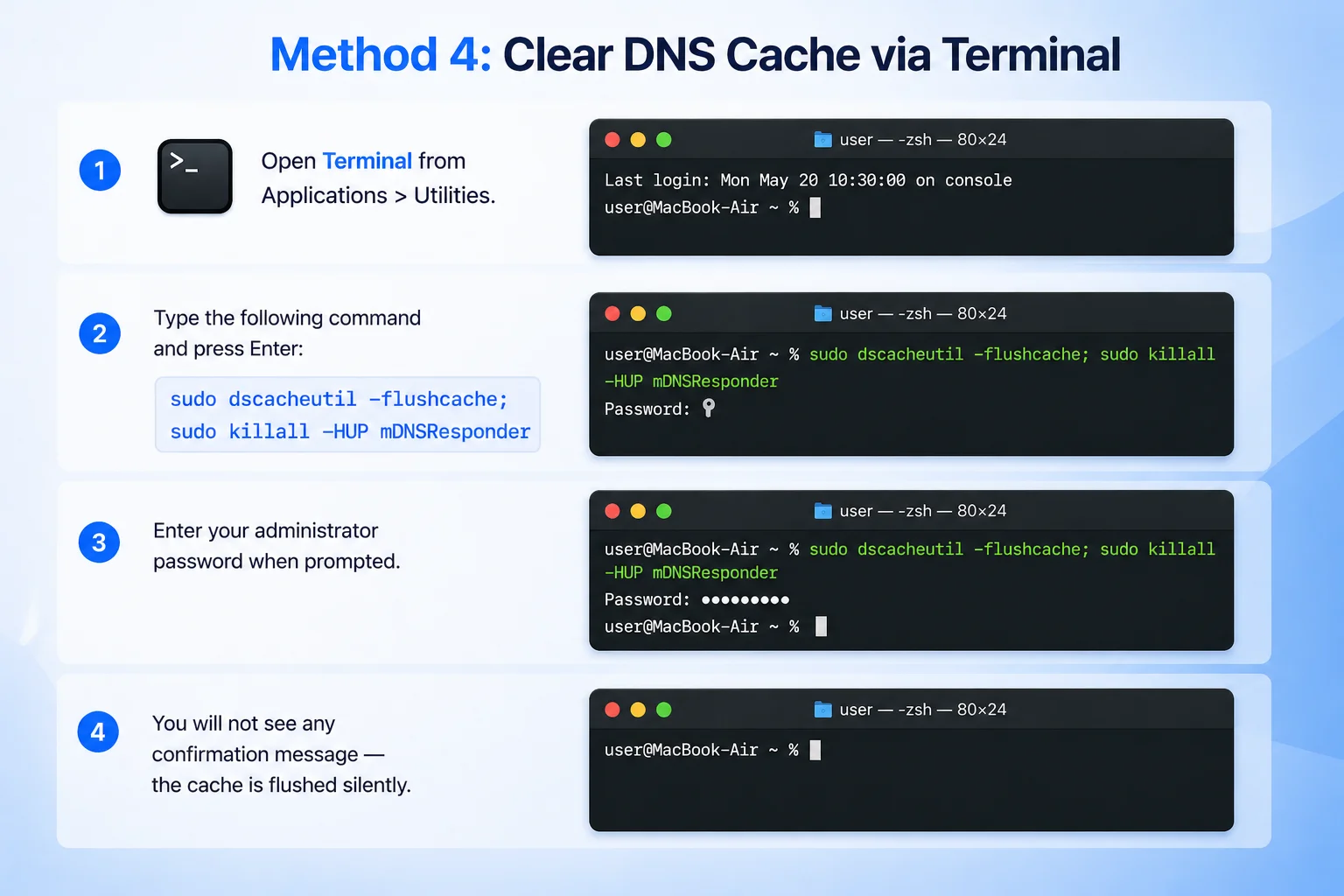
DNS cache stores website address lookups. Clearing it fixes issues where websites fail to load or resolve to old IP addresses. According to Apple Support, the dscacheutil and killall commands are the recommended way to flush DNS on macOS Ventura and later. It does not free disk space but resolves connectivity problems — Apple notes that stale DNS entries are one of the top 3 causes of website loading failures on Mac.
Method 5: Clear Font Cache via Terminal
Step 1: Close all open applications.
Step 2: Open Terminal from Applications > Utilities.
Step 3: Type the following command and press Enter: sudo atsutil databases -remove
Step 4: Enter your administrator password.
Step 5: Restart your Mac for the font cache to rebuild.
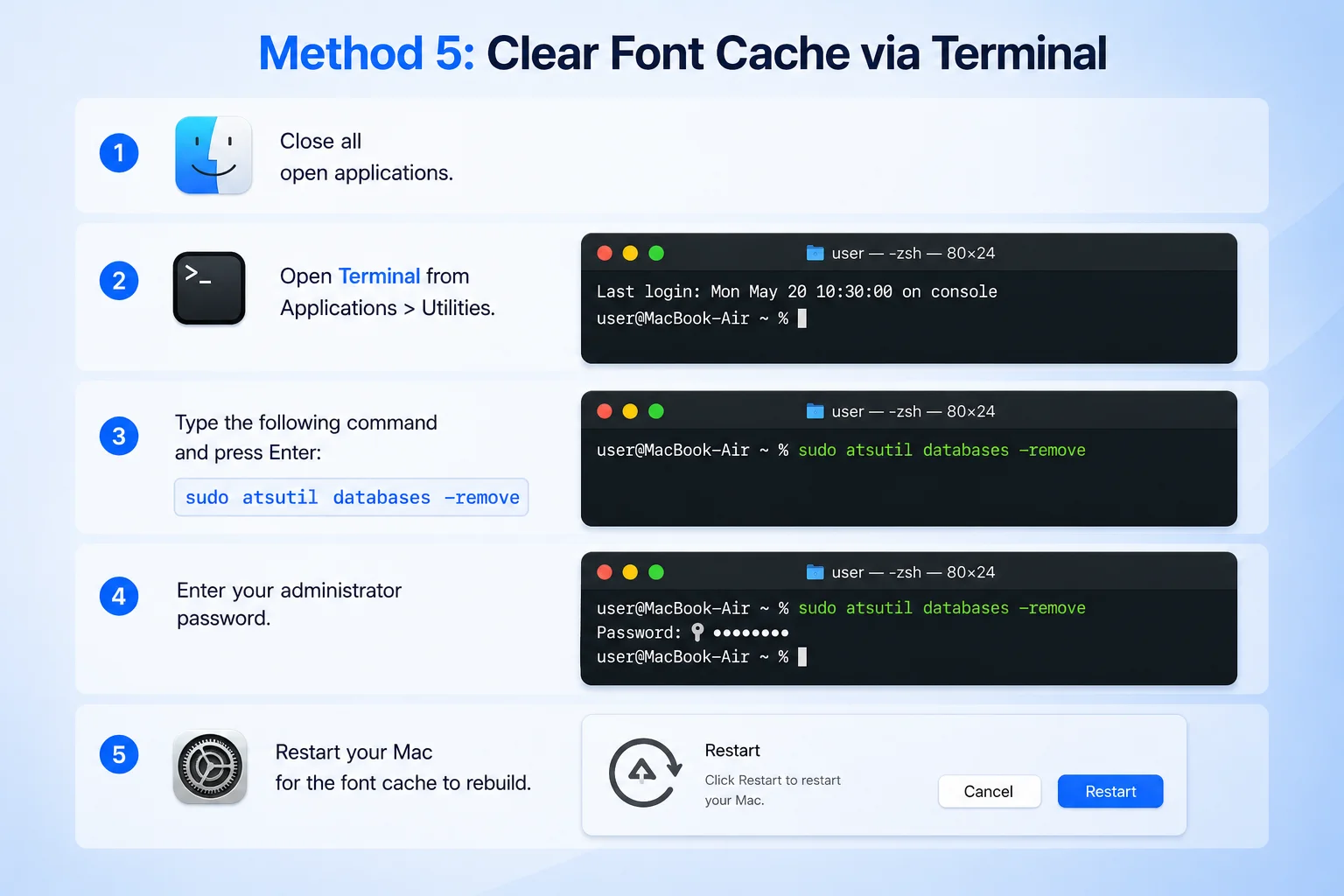
Clearing the font cache fixes font rendering issues like missing fonts, garbled text, or slow app launches in design tools like Photoshop and Illustrator. Corrupted font caches are a well-known cause of garbled or missing type in design apps, and clearing them is a standard first step. The font cache typically uses 500MB-2GB and rebuilds automatically on restart.
Types of Cache on Mac
macOS stores several types of cache data in different locations. Here is what each type does and how much space it typically uses:
| Cache Type | What It Stores |
|---|---|
| User App Cache | Temporary data stored by apps like Slack, Spotify, Zoom, and Xcode in ~/Library/Caches. Grows to 2-10GB. Safe to delete - apps rebuild it automatically. |
| System Cache | macOS system-level caches stored in /Library/Caches. Includes kernel caches, system framework data, and shared app caches. Typically 1-5GB. |
| Browser Cache | Images, scripts, stylesheets, and other web assets cached by Safari, Chrome, and Firefox. Each browser can store 1-5GB. Located in app-specific Library folders. |
| DNS Cache | Website domain name lookups cached by macOS. Takes minimal disk space but can cause connectivity issues when stale. Cleared via Terminal command. |
| Font Cache | Rendered font data cached by macOS and font management tools. Usually 500MB-2GB. Corrupted font caches cause rendering issues in design apps. |
| Application Support Cache | Cache-like data stored by apps in ~/Library/Application Support instead of the Caches folder. Includes Slack media, Spotify offline files, and Docker images. Can grow to 5-20GB and persists even after uninstalling apps. |
Which Caches Use the Most Space on Mac?
Based on data from thousands of DeepCleanMac scans, the biggest cache consumers on most Macs are: Xcode derived data and build caches (10-30GB for developers — according to Apple Developer documentation, derived data can grow 2-3x faster than source code), browser caches across Safari, Chrome, and Firefox (2-8GB combined), Slack and Teams caches (1-3GB each — according to Microsoft Support, Teams caches every image, GIF, and file preview viewed in conversations), Spotify offline cache (1-5GB depending on downloaded music), Docker image caches (5-20GB for developers), and Adobe Creative Suite scratch files (2-10GB for designers). The most overlooked cache locations are ~/Library/Application Support, where many apps store data that acts like cache but isn't in the Caches folder. Combined, a Mac that hasn't been cleaned in 6-12 months typically has 5-20GB of stale cache data — roughly 5-15% of total SSD capacity — that can be safely removed.
Tips for Managing Cache on Mac
1. Clear cache monthly
Set a reminder to clear your Mac's cache once a month. Caches grow steadily over time and a monthly cleanup prevents them from consuming significant disk space. A quick monthly scan with DeepCleanMac takes under 30 seconds.
2. Restart your Mac regularly
Restarting your Mac clears some temporary caches and swap files automatically. If you rarely shut down your Mac, these files accumulate and can use 2-5GB of space. A weekly restart helps keep things clean.
3. Close apps you are not using
Apps like Chrome, Slack, and Spotify continuously build cache while running. Closing unused apps slows cache growth and frees memory too.
4. Check ~/Library/Application Support
Many apps store cache-like data in Application Support rather than the Caches folder. Check this folder for apps you have uninstalled - their leftover data often persists and can use 1-5GB.
5. Use a dedicated cleaning tool
Manually finding and clearing caches across 200+ locations is time-consuming and error-prone. A tool like DeepCleanMac automates the process and ensures you don't accidentally delete files your Mac needs.
6. Monitor cache growth after updates
macOS and app updates often rebuild large caches from scratch. After a major macOS update or app upgrade, run a cache cleanup to remove outdated cache data that the new version no longer needs. This can free 2-5GB that would otherwise sit unused.
How DeepCleanMac Clears Cache Safely
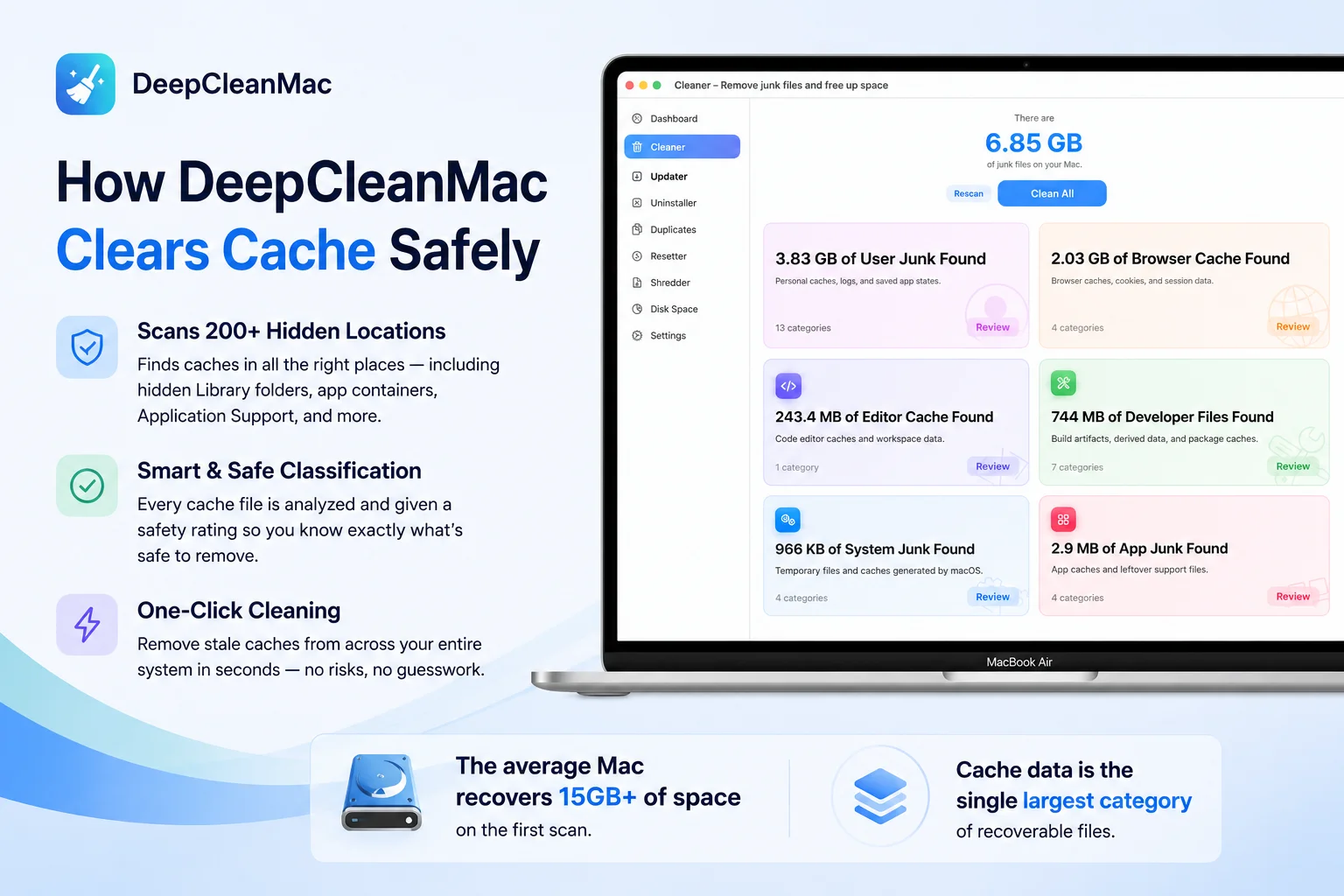
Manually clearing cache means navigating to multiple hidden Library folders, deciding which folders are safe to delete, and repeating the process for every app. DeepCleanMac automates all of this. It scans 200+ hidden locations where macOS and apps store cache data - including spots that manual cleanup misses, like nested Application Support folders, container caches, and Xcode derived data. Manual cleanup tends to miss the less obvious locations, which is where a good share of clearable cache sits. Every cache file is classified with a safety rating so you know exactly what will be removed. One-click cleaning removes stale caches across your entire system in seconds. How much you recover depends entirely on what has built up on your Mac, and you see the full list with sizes before anything is removed.
Frequently Asked Questions
Is it safe to clear cache on Mac?
▾
Yes. Caches are temporary files that macOS and apps create to speed up loading times. Apple's developer documentation describes the Caches directory as holding data your Mac can recreate, so clearing it is generally low-risk. You will not lose any personal files, documents, photos, or settings. The only minor side effect is that some apps and websites may load slightly slower on first use after clearing, as they rebuild their cache.
How much space does clearing cache free on Mac?
▾
Most Mac users recover 5-20GB by clearing all caches. The exact amount depends on how long it has been since you last cleared them and which apps you use. Developers with Xcode caches can free 10-30GB. Heavy browser users typically clear 2-8GB. Users who have never cleared cache often find 15GB+ of recoverable space.
How often should I clear cache on Mac?
▾
We recommend clearing cache once a month for most users. There is no official Apple schedule for this - monthly is simply a practical interval that stops caches from piling up. If you are running low on disk space or use cache-heavy apps like Xcode, Docker, Chrome, or Adobe CC, consider clearing every two weeks. There is no harm in clearing cache more frequently - it just means less data accumulates between cleanups.
Will clearing cache delete my passwords or bookmarks?
▾
No. Clearing cache only removes temporary files like cached images, scripts, and app data. Your saved passwords, bookmarks, browser history, and login sessions are stored separately and are not affected. However, clearing browser cookies (which is a separate option from cache) will log you out of websites.
What is the difference between cache and cookies?
▾
Cache stores copies of web pages, images, and scripts to speed up loading times. Cookies store login sessions, preferences, and tracking data for individual websites. Clearing cache does not affect your logins. Clearing cookies will log you out of websites. They are separate options in every browser's settings.
Why does my Mac get slow after clearing cache?
▾
Your Mac may feel slightly slower for the first few minutes after clearing cache because apps and websites need to rebuild their cached data from scratch. This is temporary — according to Apple Support, cache rebuilding typically completes within 5-10 minutes of normal use. Once rebuilt, performance returns to normal - often faster than before, because stale and corrupted cache data has been removed.
Can I clear cache on Mac without Terminal?
▾
Yes. You can clear user app cache and system cache entirely through Finder using the Go to Folder command (Shift + Command + G). Browser cache is cleared through each browser's settings menu. The only types that require Terminal are DNS cache and font cache. Alternatively, DeepCleanMac clears all cache types through a single graphical interface - no Terminal needed.
Cache files are one of the biggest hidden space consumers on any Mac. They accumulate silently in Library folders, growing to 5-20GB over months of normal use. The five methods in this guide give you complete control over every type of cache on your Mac - from browser caches to system caches to font caches. For the fastest results, DeepCleanMac scans 200+ hidden cache locations and clears them in one click - most users free up 15GB+ on the first scan. Download it free and see how much cache is hiding on your Mac.
Free download. Scans 200+ hidden locations in seconds.