
Best Mac Cleaning Software Guide 2026
Quick Answer
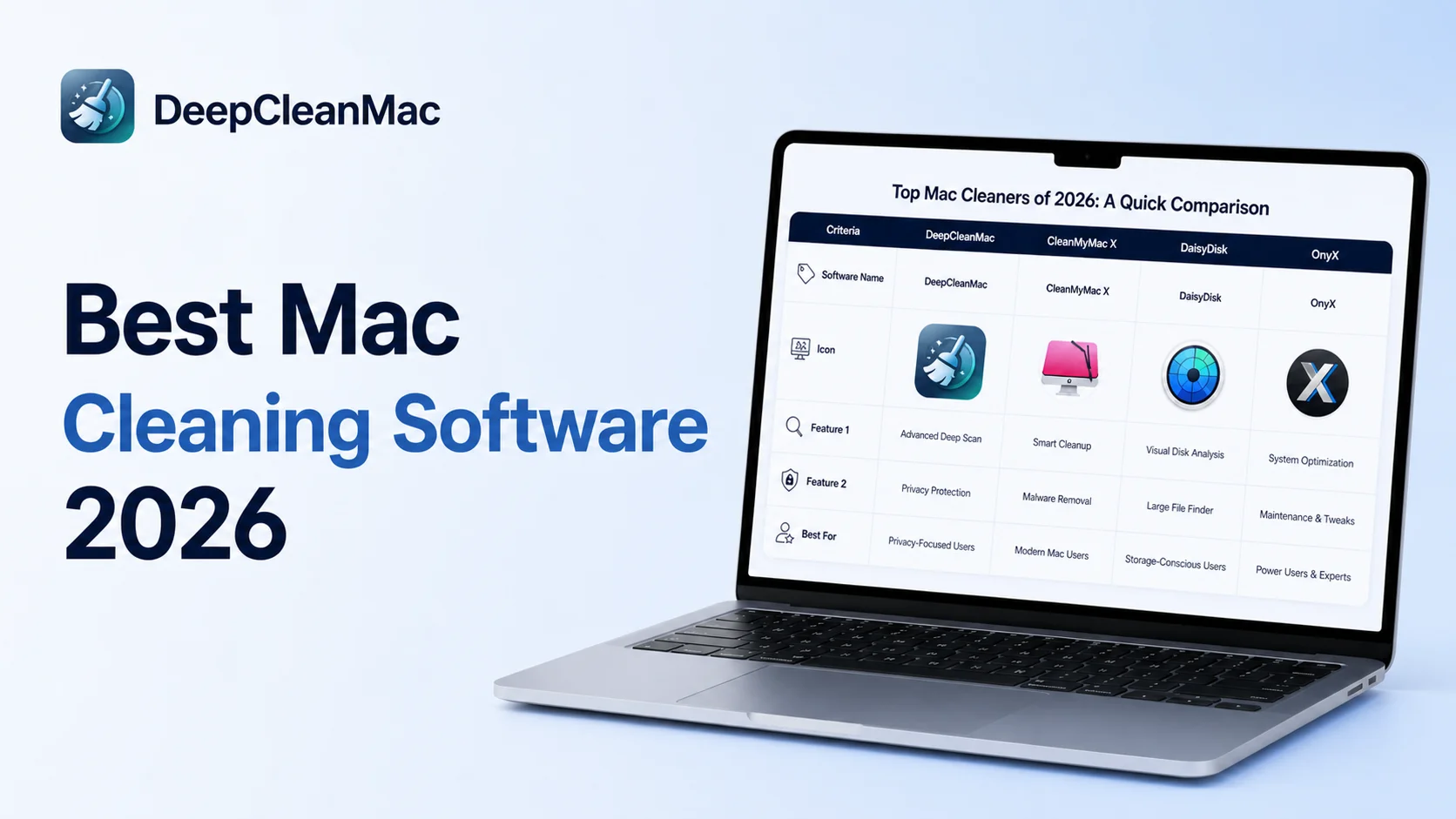
The best Mac cleaning software for most users in 2026 is DeepCleanMac. It scans 200+ hidden system locations, finds junk files, app leftovers, and duplicates, and lets you review everything before deletion. It's Apple notarized, built for Apple Silicon, and covers cleanup, uninstalling, duplicate detection, and disk analysis in one app. CleanMyMac X is a well-known alternative with broader brand recognition. DaisyDisk is best for visual disk mapping. OnyX suits advanced users who want manual system maintenance controls.
Your Mac usually doesn’t feel slow all at once. It happens in layers. A few giant video exports sit on disk for months. Old iPhone backups linger. Apps you deleted leave support files behind. Browser caches swell. Build artifacts pile up. Then one day you get the warning that your storage is nearly full, Finder hangs for a beat too long, and every routine task feels heavier than it should.
That’s when people start searching for the best mac cleaning software. The problem is that most roundups flatten every tool into the same category. They aren’t the same. Some are safe and effective. Some are just glorified cache removers. Some are great for seeing what’s eating disk space but won’t automate much. And some bundle too many aggressive cleanup options without giving you enough control.
The right way to choose a cleaner is to look at safety first, scan depth second, and workflow fit third. A video editor, a developer, and a general office user don’t need the exact same kind of cleanup tool. What matters is how the app cleans, what it targets, and whether it lets you review changes before anything gets deleted.
Why Your Mac Feels Slow and Cluttered
Most storage problems on macOS aren’t caused by one giant mistake. They’re caused by accumulation. System caches, app logs, temporary files, installer leftovers, stale downloads, browser data, and support files from half-removed apps all stack up in the background.
That clutter does two kinds of damage. First, it eats disk space you need for active work. Second, it makes routine system tasks feel slower because your Mac has less breathing room for swap, indexing, and app operations.
The usual pattern on a busy Mac
A Mac used for real work collects junk differently depending on the workflow.
- Creative Macs fill up with cache previews, render files, duplicate exports, and giant media folders.
- Developer Macs collect Xcode debris, package caches, local containers, simulator leftovers, and abandoned project folders.
- Everyday machines tend to bloat through downloads, messaging attachments, browser data, and apps that were dragged to Trash but not fully removed.
Built-in macOS storage tools can help you spot large categories, but they don’t always help you clean thoroughly. That’s why dedicated cleaners exist. The good ones automate the boring parts and leave the risky decisions visible. The bad ones rely on vague promises like “boost” or “optimize” without making it clear what they’re touching.
Practical rule:If a cleaner doesn’t show you what it found before deletion, treat it as a risk, not a convenience.
The core job of a Mac cleaner isn’t to magically repair every slowdown. It’s to identify disposable data safely, surface hidden clutter, and remove leftovers that manual cleanup usually misses. That matters more than flashy dashboards or one-click slogans.
The Top Mac Cleaners of 2026 at a Glance
Some Mac cleaners are all-in-one maintenance suites. Others are specialist tools. If you compare them only by feature count, you miss the key distinctions. The better question is what job each app does best, and how much trust you can place in its cleanup decisions.
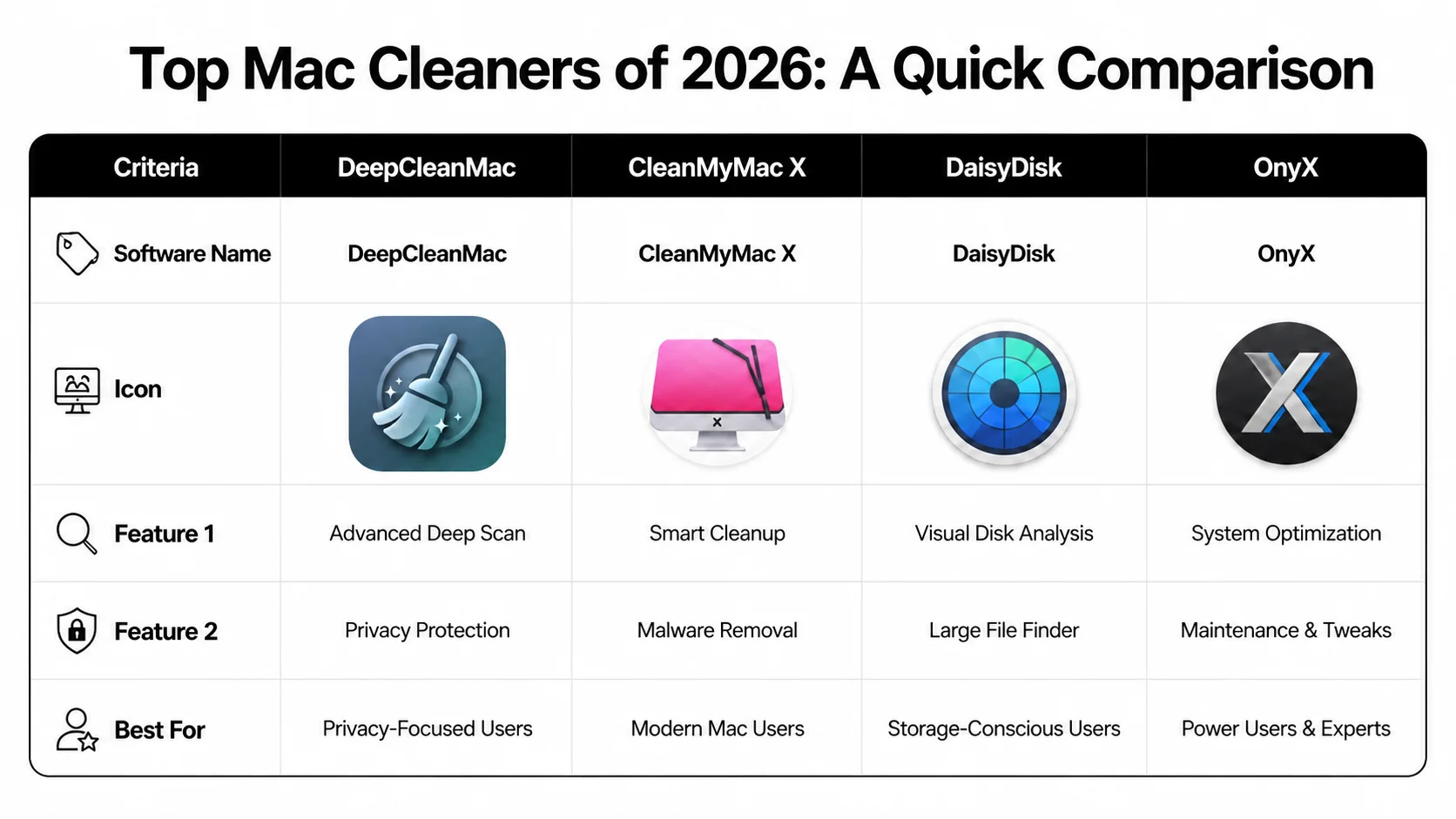
| Software | Type | What it does well | Trade-off | Best for |
|---|---|---|---|---|
| CleanMyMac X | All-in-one cleaner and maintenance suite | Broad cleanup, malware checks, privacy tools, app removal | Paid subscription model, may feel heavy if you only want one task | Users who want one app for cleanup, maintenance, and security |
| DaisyDisk | Disk visualizer | Excellent treemap view for spotting large files and folders fast | Less automated cleanup, more manual decision-making | Users who want visibility and control |
| OnyX | Maintenance utility | Deep maintenance options and system-level tasks | Interface is more technical, easier to misuse if you don’t know macOS internals | Advanced users comfortable with maintenance tools |
| DeepCleanMac | Native cleaner and utility suite | Deep junk scanning, duplicate finding, app leftovers, disk analysis | Better fit for people who want guided cleanup than manual-only analysis | Modern Mac users who want cleanup with review and control |
What sets the benchmark
CleanMyMac is often the benchmark for comparison because it has broad market recognition. It has over 29 million downloads and 16+ years of development experience as of 2026, which explains why it keeps showing up in expert roundups and buyer guides, according to the CleanMyMac App Store listing.
That doesn’t mean every user should default to it. It means other tools should be judged against the same practical standards. Is the cleanup safe. Is the scan deep enough to matter. Does the tool help you understand what you’re removing. Does it fit how you use your Mac.
What works and what doesn’t
Here’s the short version from hands-on use across this category:
- All-in-one suites work well when you want cleanup, uninstalling, privacy tools, and maintenance in one place.
- Disk visualizers work wellwhen your main problem is “What is taking up space?” rather than “Please clean hidden junk.”
- Free maintenance utilities work well for advanced users who already understand cache rebuilding, index resets, and system routines.
- Gimmicky speed claims don’t matterif the app can’t clearly show what it’s deleting or leaves app leftovers behind.
The best cleaner isn’t the one with the longest feature list. It’s the one that removes the right junk, avoids the wrong files, and matches the way you work.
How to Evaluate Mac Cleaning Software
People often compare Mac cleaners by screenshots and price tags. That’s backwards. Start with safety, then look at scan depth, then decide whether the extra tools are useful or just noise.

A useful baseline comes from the broader market itself. 70% of Mac users face disk space issues within 2 years of purchase, and demand has shifted toward apps that support 200+ system locations for cleanup, are Apple notarized, and can reclaim an average of 15+ GB per cleanup, according to Setapp’s Mac cleaner roundup. That tells you what serious tools are trying to solve.
Safety comes before cleanup power
A cleaner should never ask you to trust it blindly. Safety starts with a few essential requirements:
- Apple notarization:This is a baseline trust signal. It doesn’t mean the app is perfect, but it does mean the software passed Apple’s notarization checks.
- Review before delete: Good cleaners let you inspect categories and file groups before cleanup.
- Clear labels: You should see whether the app is targeting caches, logs, leftovers, language files, or personal data.
- Failsafes: Smart tools avoid system-critical files and keep risky categories visible rather than hidden behind one giant Clean button.
If an app uses vague labels like “system optimization” without telling you what that means, that’s a red flag. A cleaning app touches sensitive parts of your machine. It should behave like a careful technician, not a casino button.
Scan depth changes results
Two Mac cleaners can both say “junk cleanup” and deliver very different outcomes. That’s because one might only scan obvious cache folders while another checks far more hidden locations for residue, logs, support files, and stale temporary data.
That difference isn’t academic. It changes what you get back after a scan.
- Shallow scanners are fine for quick browser cache and trash cleanup.
- Deep scanners are better for old Macs, dev machines, and systems that have gone through years of installs, updates, and removals.
- Leftover-aware uninstallers matter if you regularly test apps, plugins, or utilities.
For many users, hidden app residue is the part that gets missed manually. Dragging an app to Trash almost never tells the full story.
A quick walkthrough helps show what to inspect in a cleaner before trusting it:
Performance and privacy matter in daily use
A cleaner also needs to behave well while it’s working. Fast scans are useful. Low friction matters. Background nagging doesn’t.
Look for practical signs of quality:
| Criterion | What to look for | Why it matters |
|---|---|---|
| macOS support | Current support for recent macOS versions and both Apple Silicon and Intel when relevant | Old utilities break first on newer systems |
| CPU behavior | Reasonable scan load and no constant background pressure | Cleanup shouldn’t create new performance problems |
| Privacy tools | Secure deletion, app reset options, browser and recent-item cleanup | Good for shared Macs and sensitive work |
| Utility bundle | Uninstaller, duplicate finder, disk analysis, updater | A focused bundle saves time if the tools are actually useful |
A cleaner earns trust by being specific. It names what it found, where it found it, and what happens if you remove it.
Matching a Cleaner to Your Specific Workflow
A cleaner that works well on a family Mac can be the wrong pick for an Xcode-heavy workstation or a photo editor’s MacBook Pro. The difference is not branding. It is what the tool scans, how clearly it explains its findings, and how safely it handles deletion.

Creative professionals
Creative Macs fill up in ways generic cleaners often miss. Final Cut libraries, Lightroom previews, duplicate exports, audio renders, project archives, and scratch files can live across internal storage, external SSDs, and cloud-synced folders. A tool like DaisyDisk is useful here because it gives fast visual clarity. You can see which folders are huge before you touch anything.
That visibility matters for safety. Creative users often keep large files that look disposable but are tied to active jobs, old client revisions, or reusable assets. A visualizer helps you inspect before deleting. A cleaner with duplicate detection and residue scanning helps with the second layer of clutter, such as abandoned plugin files, old support data, and app leftovers from Adobe, Affinity, or video utilities.
The practical choice is simple. Use a disk visualizer if your main problem is large media and project folders. Use a cleaner with deeper scanning if your Mac also carries years of hidden support files from creative apps that do not uninstall cleanly.
Developers and power users
Developer systems produce a different kind of clutter. The biggest offenders are often not obvious in Finder. Xcode derived data, iOS simulator images, Homebrew downloads, Docker layers, logs, temp files, package caches, and orphaned support files pile up in hidden locations.
Scan depth matters more here than a polished interface. In one comparison by MacPaw’s roundup of Mac cleaner software, basic cleaners were described as recovering around 10 to 20 GB, while more advanced tools identified up to 53.7 GB of removable data in its example. Treat that as a source claim rather than a lab benchmark, but the direction matches real use. Shallow cleaners tend to find the easy junk. Better tools reach containers, support files, and stale development residue that manual cleanup often misses.
For this group, the right tool usually includes:
- Deeper scan coverage: Better for caches, containers, logs, and residual files outside the usual junk categories.
- App reset or full uninstall options: Useful for broken dev tools, beta apps, and utilities that leave settings behind.
- Large-file and duplicate views: Handy for old installers, archived builds, repeated project copies, and forgotten VM images.
If that matches your setup, the workflow-specific DeepCleanMac use cases give a practical view of the cleanup patterns modern Mac users run into.
IT admins and everyday users
For office Macs, shared family machines, and support environments, the best cleaner is the one least likely to cause confusion. The priority is not maximum file recovery. It is predictable cleanup, readable categories, and low risk.
That is why some advanced tools are a poor fit outside enthusiast circles. OnyX is powerful, but it expects users to understand maintenance routines and system options. DaisyDisk is excellent for storage analysis, but it leaves more judgment to the person holding the mouse. For general use, safer cleaners explain what they found in plain language, separate low-risk junk from files that need review, and make leftover app files easy to identify without forcing users through raw system paths.
In practice, match the tool to the mess. Creative users need visibility into giant assets. Developers need deeper scans and proper uninstall support. Everyday users and IT teams need clarity, restraint, and a low chance of deleting the wrong thing.
The Safe Way to Clean Your Mac
Even good cleaning software can be used badly. The safest cleanup routine is boring, deliberate, and consistent. That’s exactly why it works.
What you can usually remove safely
Start with a backup. Time Machine is often sufficient. If a cleaner makes a mistake or you approve something you shouldn’t have, recovery matters more than any cleanup feature.
Then scan first and review second. In most cases, these categories are the lowest-risk cleanup targets:
- Caches: App and system caches often rebuild themselves.
- Logs: Old logs usually have little value outside troubleshooting.
- Temporary files: These exist to serve short-term operations.
- Trash and stale installers: Common, obvious wins.
If you want a manual baseline before using any cleaner, this guide on how to clear cache on Mac is a useful reference for what cache cleanup involves.
Cleaners are safest when you treat them like review tools first and delete tools second.
What deserves a second look
Some categories need your attention before you approve deletion.
- Downloads folders often contain files you meant to sort later and never did.
- Language files can be safe to remove in some setups, but not everyone wants that trade-off.
- Large mail attachmentsmay still matter if they’re tied to active projects.
- Old project files can look disposable until a client asks for revisions months later.
The safest habit is to review by category, not by promise. “Junk” is a marketing word. File paths, app associations, and file types tell you what’s really going on.
Recommendation: DeepCleanMac for Modern Macs
A common pattern on newer Macs is lots of small leftovers rather than one obvious storage hog. Xcode caches, Adobe support files, stale installers, duplicate exports, half-removed apps. Manual cleanup works, but it takes time, and the risk rises when those files are spread across hidden Library folders.
For that kind of cleanup, DeepCleanMac is a reasonable fit for current Macs. The practical appeal is not marketing language. It is how the app approaches cleanup. It scans beyond the obvious user folders, covers hidden locations that accumulate real junk over time, and keeps the review step front and center before anything is removed.

That matters because safety and performance are tied together. A cleaner that only empties caches may be safe but underpowered. One that sweeps aggressively without context can free space fast and still create cleanup debt later. DeepCleanMac sits in the more useful middle. It targets junk files, app leftovers, duplicates, and uninstall residue, while giving enough visibility for users who want to confirm what is being touched.
It also covers jobs that often force people to install separate tools: uninstalling apps fully, resetting problem apps, finding duplicates, checking disk usage, shredding sensitive files, and handling routine update tasks. For a creative workflow, the duplicate finder and disk analysis are usually the bigger wins. For developers, app reset and deeper leftover cleanup tend to matter more, especially on Macs that cycle through test builds, package managers, and virtual environments.
Pricing is simpler than the usual utility software pattern. There is an annual plan and a lifetime option, which is easier to evaluate than a low entry price followed by feature gates. That does not make it the right tool for every job.
DaisyDisk remains better for visual storage mapping. OnyX still makes sense for advanced users who want direct access to maintenance and system settings. DeepCleanMac makes more sense for people who want one cleaner that is fast to review, broad enough to catch hidden clutter, and less likely to push them into risky manual deletion.
Frequently Asked Questions
Are Mac cleaners really necessary or safe to use?
▾
Some are useful. Some aren't worth installing. A Mac cleaner is worth using when it does three things well: shows you what it found, targets the kinds of clutter macOS accumulates over time, and avoids risky blind deletion. Safety depends more on the app's behavior than on the category itself.
Can't I just clean my Mac manually?
▾
You can, and advanced users often do part of it manually. The problem is time and visibility. Manual cleanup works for obvious folders and one-off maintenance. It doesn't work as well for app leftovers, hidden caches, support files, and scattered junk spread across system locations. That's where dedicated cleaners save effort.
Will cleaning software make my Mac run like new?
▾
Sometimes you'll feel a real improvement, especially if storage pressure was the main problem. But cleaning won't fix old hardware, weak battery health, or a machine overloaded with startup items and heavy apps. Good cleaners help restore space and reduce clutter. They don't turn every aging Mac into a new one.
What's the biggest mistake people make with cleaners?
▾
Trusting automation more than review. The safest habit is to scan, inspect categories, and approve deletion with intent. Fast cleanup is good. Blind cleanup isn't.
What is the best free Mac cleaner in 2026?
▾
OnyX is the most capable free option. It offers deep maintenance controls, cache rebuilding, and system-level cleanup. The trade-off is a more technical interface that assumes familiarity with macOS internals. For users who want guided cleanup with review, paid tools like DeepCleanMac or CleanMyMac offer a safer and faster experience.
Is CleanMyMac worth it?
▾
CleanMyMac is a solid all-in-one suite with over 29 million downloads and 16+ years of development. It covers cleanup, malware checks, privacy tools, and app removal in one place. Whether it's worth it depends on whether you need that breadth or prefer a lighter tool focused on deep scanning and review-first cleanup.
How much space can a Mac cleaner recover?
▾
It depends on how long the Mac has been used and what kind of work it handles. Typical cleanups recover 5 to 15 GB of junk files, caches, and app leftovers. Developer machines and creative workstations often yield more - advanced tools have reported finding over 50 GB of removable data on heavily used systems.
If your Mac is running out of space and you want a cleaner that focuses on reviewable cleanup instead of vague promises, take a look at DeepCleanMac. It's built for current macOS versions, targets hidden clutter that manual cleanup often misses, and gives you control over what gets removed.
Free download. Scans 200+ hidden locations in seconds.